Install and activate your
eSIM on Samsung

Open Settings > Connections > SIM Manager to begin installing your eSIM on your Samsung device.
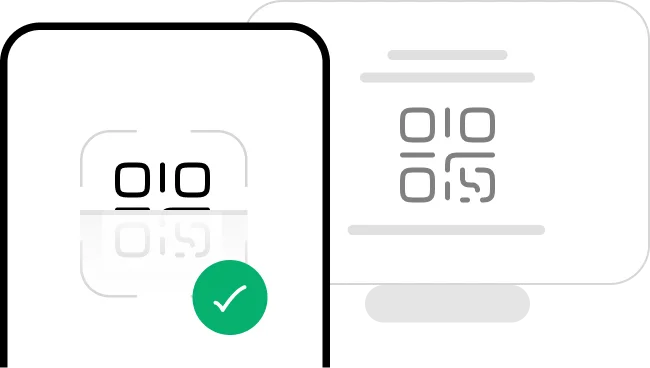
Select "Install with QR Code" if you have the code on another device to scan.
eSIM Manual code
1234 5678 9012
Tap "Install Manually" If you can't scan the QR code.
Select your installation option
Before you begin installation with a QR code, there are a few important points to be aware of:
- •You must have the QR code on another screen or device to scan it with your phone camera.
- •Make sure you have a stable internet connection throughout the process.
- •Please note that the QR code can only be scanned once.
- •Do not remove the eSIM from your device as you will not be able to use it again.
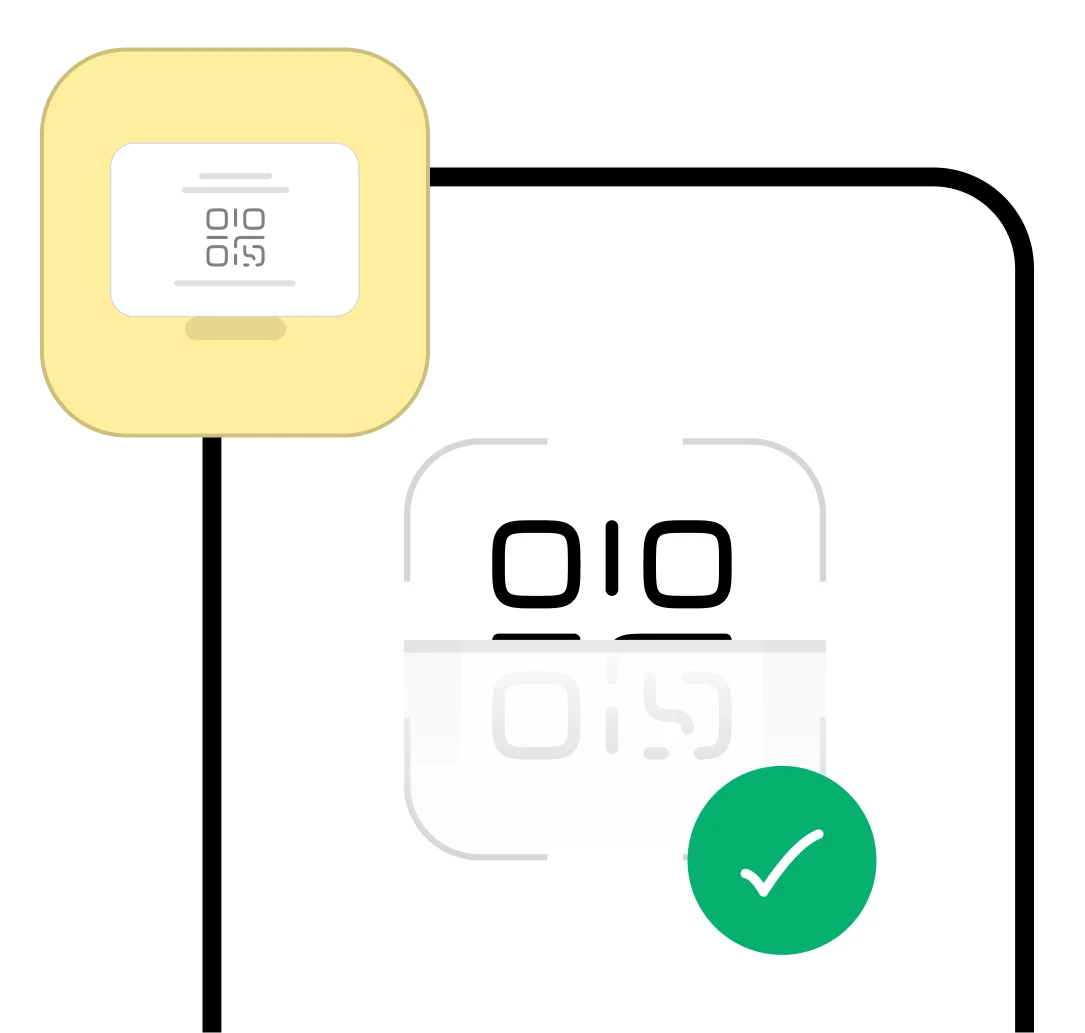
Before you begin manual installation, there are a few important points to be aware of:
- •Manual installation codes can only be used once.
- •Make sure you have a stable internet connection throughout the process.
- •Do not remove the eSIM from your device as you will not be able to use it again.

Enter Activation Code
1234 5678 9012

Let's get started together
Our team is here 24/7 if you need assistance during installation.
Install eSIM via QR Code
Install eSIM via Activation Code

Settings
This phone is ready to activate a Hello Roam eSIM.

1. Open Settings
Go to Settings > Connections > SIM card manager.

Connections
2. Add eSIM
Tap Add mobile plan.
Sim manager
Sim cards
eSIMs
Preferred SIMs
3. Scan QR Code
Use camera to scan the QR code provided by your carrier.
Add eSIM
Other ways to add SIMs
4. Confirm
Review and confirm the plan details to complete installation.
Scan the QR code you get from your service provider

5. Scan the QR code
Use your phone camera to scan the QR code provided in your email to automatically configure your eSIM.
Add eSIM
Add Hello Roam eSIM?
This will let your phone connect to hello roam network.
6. Add mobile plan
Confirm the mobile plan details and tap 'Add mobile plan' to complete the eSIM installation.
Sim manager
Sim cards
eSIMs

Preferred SIMs
7. Label and setup eSIM
Give your eSIM a label (e.g., 'Hello Roam') and configure it as your preferred mobile data line.
Install eSIM via QR Code
Install eSIM via Activation Code
Settings
This phone is ready to activate a Hello Roam eSIM.
1. Open Settings
Go to Settings > Connections > SIM card manager.
Connections
2. Enter Details Manually
Select Add mobile plan and then tap Enter details manually.
Sim manager
Sim cards
eSIMs
Preferred SIMs
3. Input Activation Code
Enter the SM-DP+ address and activation code provided by your carrier.
Add eSIM
Other ways to add SIMs
4. Confirm
Review and confirm the plan details to complete installation.
Add using activation code
The code looks like this:
• https://operator.sm-dp.com
• LPA:1 $operator.com$ABCDE-12345
5. Enter the code
Copy and paste the manual installation code for Samsung sent to your email. Click "Continue" and wait a few seconds.
Add eSIM
Add Hello Roam eSIM?
This will let your phone connect to hello roam network.
6. Add mobile plan
Confirm the mobile plan details and tap 'Add mobile plan' to complete the eSIM installation.
Sim manager
Sim cards
eSIMs
Preferred SIMs
7. Label and setup eSIM
Give your eSIM a label (e.g., 'Hello Roam') and configure it as your preferred mobile data line.

Activation guide for your eSIM

Important:
- •You must be at your destination to activate your eSIM.
- •Enable airplane mode, then turn on Wi-Fi to avoid home network charges.
- •Download this guide as PDF for offline access during your trip.
Open Settings and navigate to SIM Manager to find your eSIM.

Turn on your eSIM line and enable data roaming for connectivity.
Your eSIM is now active and ready to use worldwide.
That's it! Your plan is now active and you can start using your data.
Start using your data immediately. No roaming fees, no surprises.



1.
Make sure there is at least one bar in the signal icon on your Samsung device.
2.
Go to "Settings" > "Connections" > "SIM Manager", tap "Hello Roam" and verify that "Data roaming" is enabled.

Samsung Galaxy Tips & Tricks
- OneUI 6.0+ Users: The SIM Manager might be under Settings > Connections
- Dual eSIM Support: Galaxy S24 series supports two active eSIMs simultaneously. Perfect for travel!
- Software Update: Ensure you're running the latest OneUI version for best eSIM experience.
FAQs
eSIM is supported on Samsung Galaxy S20, S21, S22, S23, S24 series (including Ultra and FE models), Galaxy Z Fold 2, 3, 4, 5, Galaxy Z Flip, Z Flip3, Z Flip4, Z Flip5, and Galaxy Note 20 series. You need OneUI 3.0 or later (Android 11+).
On Samsung Galaxy phones: Go to Settings > Connections > SIM Manager. On OneUI 6.0+, it might be under Settings > Connections > SIM card manager. If you can't find it, use the search bar in Settings and type 'SIM Manager'.
Yes! On Samsung Galaxy: Go to Settings > Connections > SIM Manager > Add eSIM > Scan carrier QR code > Enter activation code manually. Then input the SM-DP+ address and activation code from your HelloRoam email.
Yes! Samsung Galaxy S24 series (S24, S24+, S24 Ultra) supports dual eSIM, meaning you can have two eSIM profiles active simultaneously without needing a physical SIM card. You can manage both eSIMs in Settings > Connections > SIM Manager.
Common fixes: 1) Update to latest OneUI version, 2) Ensure phone is unlocked (not carrier-locked), 3) Clean your camera lens, 4) Adjust lighting and distance when scanning, 5) Try manual installation if QR code won't scan. Contact Samsung support if issue persists.